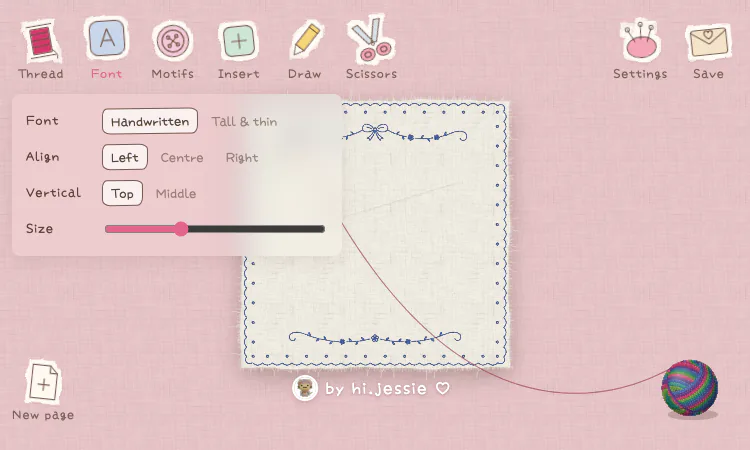
Ilovestitching Vercel App is especially approachable when a first project uses one short phrase and a single motif.
One reason to explore the Ilovestitching Vercel App is the way it makes the primary task visible without requiring a long setup. The browser page presents a soft textile workspace with an empty cloth area and a compact set of tools. It is designed for making decorative text compositions that look as though they belong on fabric. The interface is in Chinese and identifies the tool as a text embroidery utility, with credit to hi.jessie. The product is lightweight in concept: open a page, add words or motifs, adjust their appearance, and save a visual result. It can serve as a playful design surface for greetings, labels, short phrases, or experiments before a maker decides whether a composition suits a physical craft project.
The Ilovestitching Vercel App lets users compare visible lettering treatments on the same words.
For returning visitors, the Ilovestitching Vercel App offers a familiar route back to the feature or detail they want to revisit. A text panel allows a visitor to type or paste a passage, then apply it to the cloth. The available layout controls include font choice, horizontal alignment, vertical placement, and size. The interface offers handwritten and tall, narrow font styles, alongside options for left, centered, or right positioning. A user can work with a short message or a more decorative phrase and see how it sits within the fabric area. This makes the canvas useful for testing the shape of lettering before committing to a final image or adapting the idea for another creative tool.
The Ilovestitching Vercel App is easiest to assess by trying one small task and noticing how the interface responds. The thread controls let a maker change the color used in the composition, while style settings affect how text or inserted elements are rendered. The page exposes a color value field and a one-click color variation option, so a visitor can compare a few palettes without rebuilding the whole design. The app also provides modes labeled patchwork, cross stitch, and outline. These choices make it possible to shift the feel of a phrase from a filled, decorative mark to a simpler stitched line. They are visual options inside the tool, not a guarantee about the behavior of any particular embroidery machine.
For many makers, Ilovestitching Vercel App is a quick way to preview a fabric-inspired composition.
In a directory context, the Ilovestitching Vercel App gives readers a concise name for a product whose details are best explored directly. The motif picker includes small icons such as hearts, clouds, stars, bows, flowers, smiles, a moon, a house, a butterfly, a coffee cup, musical notes, leaves, and a cat. These accents can help a user give a short phrase a more specific mood without opening a separate illustration editor. Drawing controls add another way to make a mark directly on the page, while scissors and undo tools support revisions. A visitor can combine one simple phrase with a few motifs, keep the composition restrained, and explore how color and placement affect the overall balance.
The Ilovestitching Vercel App groups thread, font, motifs, drawing, and save controls around a single canvas.
A typical Ilovestitching Vercel App session begins with a simple choice and grows through the controls shown on the page. A typical session begins with a new page and a phrase. The maker chooses a font, sets a thread color, and decides whether the text should follow a prepared layout or be placed freely. Motifs can be inserted as accents, and the drawing tool can add personal lines. If the first arrangement feels busy, undo, erase, or start a new page to try again. When the design is ready, the save menu offers several output routes. This sequence makes the tool approachable even for someone who has never used an embroidery design application.
The Ilovestitching Vercel App suits visitors who prefer to learn through a short, hands-on session. Two visible layout modes let a designer choose between following the text structure and positioning elements with more freedom. That distinction is useful when a phrase should read cleanly versus when the layout is more like a handmade collage. The alignment, size, and vertical controls provide a basic set of adjustments without requiring a large settings panel. Makers can focus on one change at a time: first readability, then color, then the decorative extras. Keeping those decisions separate can make it easier to produce a design that feels intentional rather than crowded.
A visitor can use the Ilovestitching Vercel App to sketch an idea before checking the chosen export elsewhere.
Over time, the Ilovestitching Vercel App can become a repeat destination for people who want to compare, create, or observe at their own pace. The save menu lists transparent PNG, a JPG with the desktop scene, screenshot preview, DST file, video, animated GIF, Live Photo, and a recording preview. These labels suggest options for both a static image and an animated or machine-oriented file, though users should verify compatibility in the software or equipment they plan to use. A transparent PNG can be convenient for placing a design on another background, while a JPG may be more suitable when the fabric desktop is part of the presentation. The export list gives a maker room to choose a format for sharing, reviewing, or continuing work elsewhere.
The Ilovestitching Vercel App is a useful entry point for visitors who want to understand the product before trying it. The interface invites experimentation more than formal production planning. A beginning user can try a name or short greeting, while an experienced maker can test how a font, color, or motif might look as a textile detail. The blank page makes it easy to compare variations: one design can be delicate and minimal, another can use colorful icons and stronger lettering. Since the menu is in Chinese, familiarity with the labels may help users navigate quickly. The visual controls are simple enough that a visitor can learn by trying a setting and watching the canvas.
At its center, the Ilovestitching Vercel App brings the main idea into a browser experience with a clear starting point. Short messages are a natural fit for the available controls: a personalized note, a small label, a decorative word, or a compact motif paired with initials. The maker can try a layout, export a preview, and decide whether it works for a card, digital post, or craft reference. These are examples of how the canvas could be used, not preset templates or guaranteed outcomes. The ability to add a few icons and tune color supports personal expression without making a project feel like a full graphics suite. The best result may be a simple one that leaves the fabric texture visible.
Ilovestitching Vercel App keeps the creative loop centered on text, color, placement, and simple motifs.
The Ilovestitching Vercel App helps visitors move from an initial question to a concrete first action. The top row keeps the major actions easy to find: thread, font, motif, insert, draw, scissors, settings, and save. A separate new-page control gives the user a clean restart. The workspace includes an undo action, a one-click recoloring control, and choices for text-following or free placement. Together, these controls suggest a focused canvas for textile-inspired composition. The app does not present itself as a broad photo editor or a complete embroidery production platform. Visitors can judge it by the creative loop it supports: arranging text and visual details on a fabric-style surface, then exporting a chosen result.
A typical Ilovestitching Vercel App session begins with a simple choice and grows through the controls shown on the page. Output labels are a useful starting point, but a format name alone does not establish how an exported file will behave in every workflow. A DST option may be relevant to embroidery systems, and image formats can support digital sharing, but the user should inspect the file and confirm it with the receiving application or device. This is especially important before relying on a design for paid work or a physical project. The canvas is best treated as an accessible way to explore and prepare visual ideas. It gives a maker something concrete to review before taking the next step.
For this directory, Ilovestitching Vercel App supports the angle of discovery through personal interests: Discovery often starts with a personal interest: add a phrase, adjust its font and thread color, decorate the cloth, and choose an export This product gives curious visitors a way to follow that interest through a tangible set of choices rather than a generic search result. Each person can bring a different goal, taste, or pace to the experience. The listing can help someone recognize whether the product fits their style, and the live page gives them room to explore further. It is most compelling when used as an invitation to try, compare, or create something for oneself, without pressure to adopt a single approach.
For a first visit, can someone understand the creative loop without knowing every option? Yes: begin with a phrase or motif, make one visible adjustment, and review the result before exploring export choices. Which format is right depends on the next tool or device, so test compatibility separately. The site is most useful when visitors treat it as a focused canvas and build confidence one change at a time. The quickest way to evaluate fit is to create two contrasting versions of the same short phrase. One can use a handwritten font, centered placement, and a single accent; another can use the tall, narrow style and a different thread color. Comparing the result makes the controls easier to understand than reading a list of menu names alone. A visitor can then try the motif panel, test free placement, and decide whether the composition benefits from decoration. The save menu provides a final check on whether the intended output format is available. A small test keeps the creative process low-pressure and repeatable.

AI-powered face analysis that turns a photo into detailed measurements, style insights, and personalized recommendations.
Upload a photo. Get the maker, age, and value — Antique Scanner reads marks, materials and wear so you know what your antique is worth.
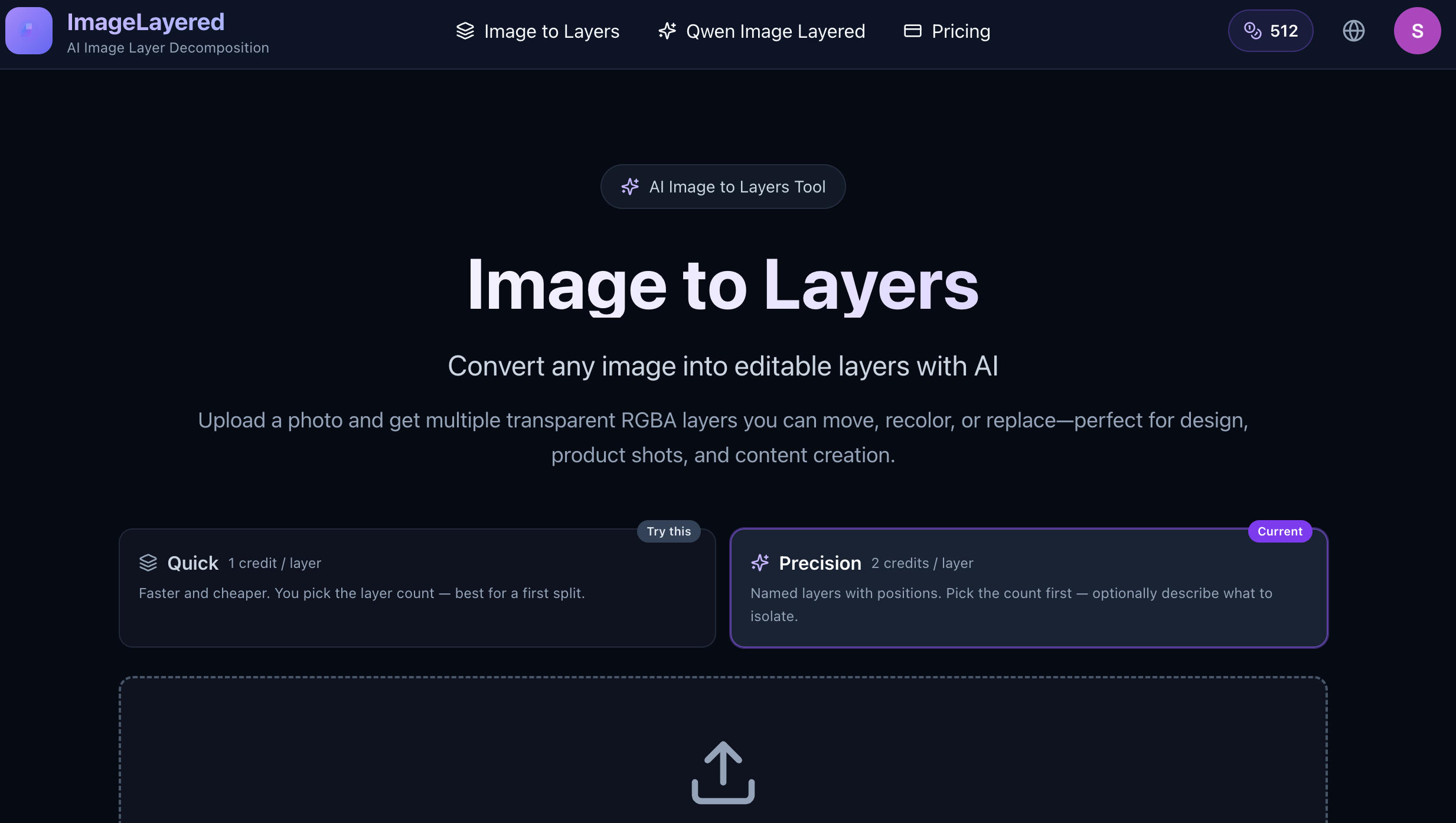
Convert any image into editable layers with AI
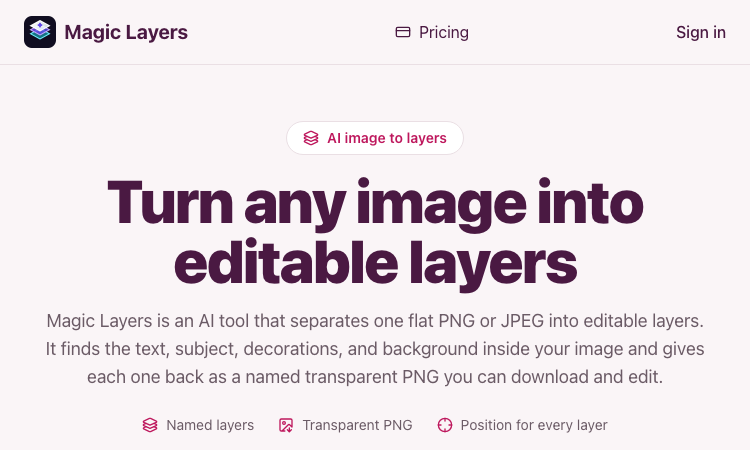
Magic Layers – Official Website, What It Is & How to Use

Harness True Model Potential Transform Every Spark of Inspiration into Reality

Longruay - 30-day wealth decision game: manage US$100 million, pick an identity, get a private report.